Getting Started with Lovable.dev
Set up your environment and launch Vibe QA in your Lovable.dev project.
Before You Start
- Installed the Vibe QA Extension from the Chrome Web Store (installation guide)
- Configured your API key
- Have a Lovable.dev account and project
Open Your Lovable.dev Project
- Go to Lovable.dev
- Open any project (or create a new one)
- Wait for the editor to load
You should see:
- Code editor on the left
- Preview panel on the right
- Toolbar at the top
Launch Vibe QA
Look for the QA button in the toolbar (usually top-right area, near the preview controls).
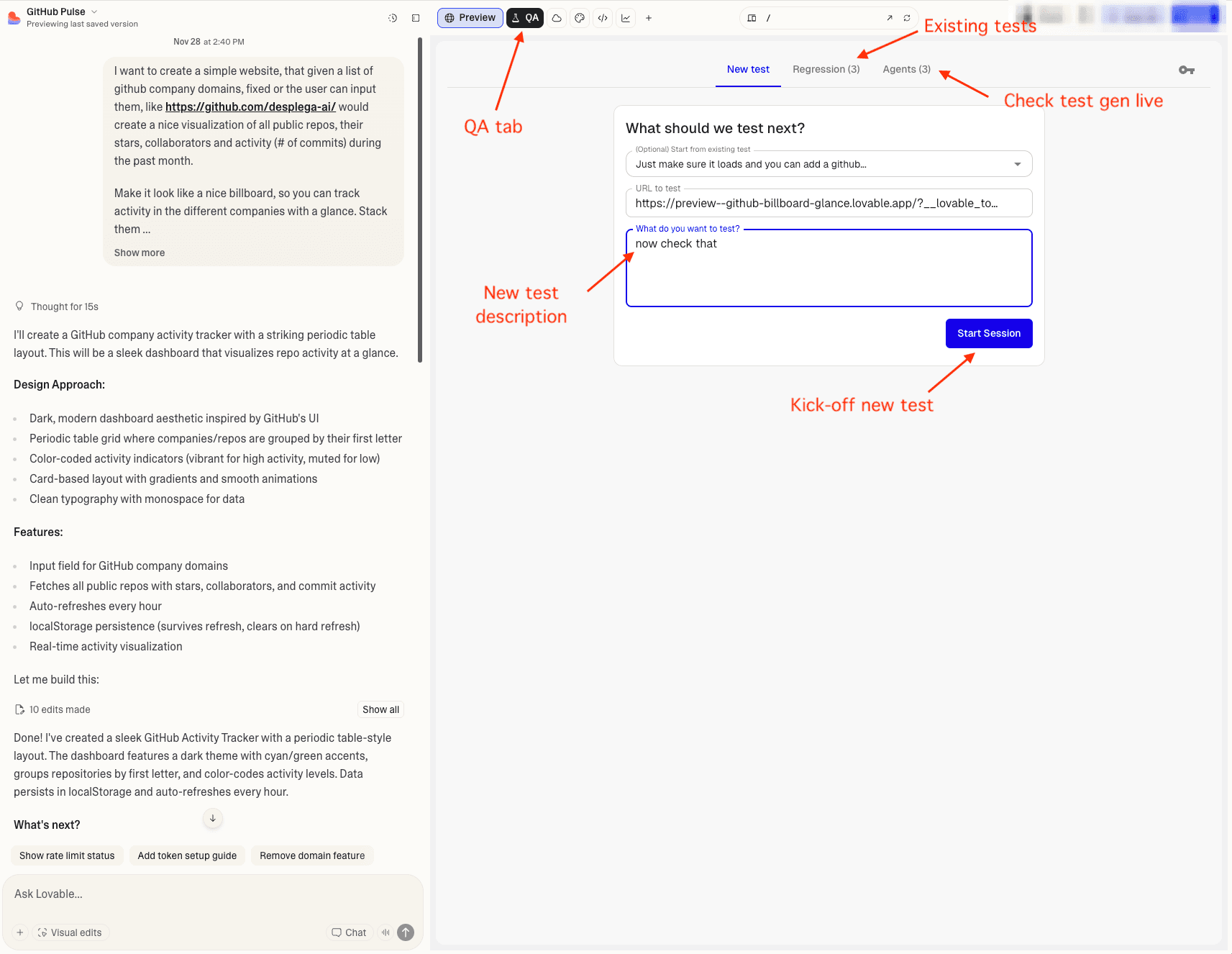
Can't find it?
- Refresh the page (F5 or Cmd+R)
- Check the extension is enabled at chrome://extensions/
- Look for a small testing icon or "QA" text
Not Using Lovable.dev?
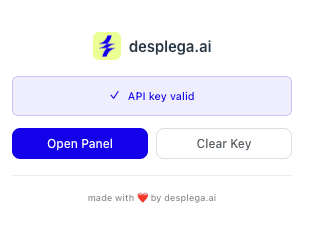
You can still use Vibe QA with any website! The Chrome extension includes an "Open Panel" option that opens desplega.ai Vibe QA in a new Chrome tab.
- Click the Vibe QA extension icon in your Chrome toolbar
- Look for the "Open Panel" option
- Click it to open desplega.ai Vibe QA in a new Chrome tab
- From there, you can create and run tests for any website URL
Related Guides
Vibe QA Extension
Power your vibe coding workflow with AI-powered QA testing. The Desplega.ai Vibe QA Extension integrates seamlessly with Lovable, bringing enterprise-grade testing directly into your development workflow.
Vibe QA Installation
Step-by-step guide to install the Vibe QA Extension in Chrome. Configure your API key and start testing your Lovable projects with AI-powered QA automation.
Watch the Magic
Watch as Vibe QA attempts to execute your test autonomously. Understand how the agent interacts with your application in real-time.