Bolt.new to Cursor: Bringing Your AI-Generated Project to Production
You've mastered rapid prototyping in the browser. Now let's scale your MVP with professional tooling while keeping that velocity high.
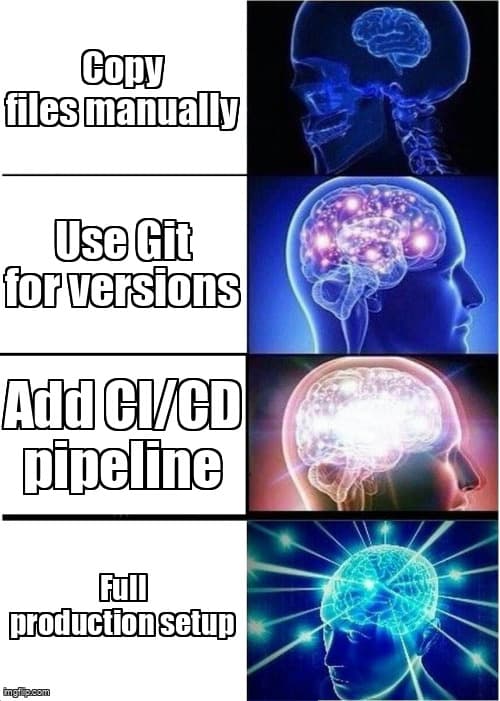
Before/After: What Changes (and What Doesn't)
You've shipped an impressive MVP in Bolt.new—maybe it's getting traction, maybe you need to add team members, or maybe you've hit the limits of browser-based development. The good news: you don't have to abandon the AI-assisted workflow that got you here.
| Workflow Aspect | Bolt.new | Cursor |
|---|---|---|
| Code Generation | AI chat → instant preview | AI chat → apply to local files |
| File System | In-browser WebContainer | Local disk (full control) |
| Version Control | Manual exports | Git integration (branches, PRs) |
| Deployment | Bolt-hosted preview | Your CI/CD → any platform |
| Collaboration | Share URLs | GitHub/GitLab workflows |
What you gain: Professional version control, unlimited customization, team collaboration, production-grade deployment pipelines, and the ability to integrate any tool or service.
What you keep: AI-powered code generation, rapid iteration speed, and that satisfying flow state where you describe what you want and watch it materialize.
Prerequisites: What You Need Before Starting
Before diving into the migration, make sure you have these fundamentals in place:
- Your Bolt.new project exported: Download your entire project as a ZIP file from Bolt's interface
- Node.js installed locally: Version 18+ recommended (check with
node --version) - Git installed: You'll need this for version control (
git --versionto verify) - Cursor IDE downloaded: Free download from cursor.sh
- GitHub account: For hosting your repository (GitLab or Bitbucket work too)
- Terminal comfort: Basic command-line familiarity helps, but we'll walk through each command
Time estimate: 2-3 hours for initial migration, including first deployment test. Most of this is one-time setup—subsequent projects will be much faster.
Step-by-Step Migration Guide
1. Export and Organize Your Bolt Project
Start by getting your code out of the browser and onto your local machine:
- In Bolt.new, click the menu icon (three dots) and select "Download Project"
- Extract the ZIP file to a clean directory:
~/projects/my-app - Open Terminal and navigate to that directory:
cd ~/projects/my-app - Install dependencies to verify everything works:
npm install - Test the dev server:
npm run dev
If you see your app running at localhost:3000 (or similar), you're good to proceed.
2. Initialize Git Version Control
This is where you gain superpowers Bolt doesn't have—proper version history and collaboration:
# Initialize git repository
git init

# Create .gitignore (Bolt might not have included this)
echo "node_modules/
.env
.env.local
.next/
dist/
build/" > .gitignore

# Make your first commit
git add .
git commit -m "Initial commit: Migrated from Bolt.new"

# Create GitHub repo and push
gh repo create my-app --private --source=. --remote=origin
git push -u origin main
Now you have a complete history of every change. If something breaks, you can always rewind.
3. Set Up Cursor with AI Assistance
Open your project in Cursor and configure it to match your Bolt workflow:
- Launch Cursor and open your project folder
- Press
Cmd+Shift+P(Mac) orCtrl+Shift+P(Windows/Linux) - Type "Cursor Settings" and enable AI features
- Connect your OpenAI API key or use Cursor's built-in models
- Try the AI chat (
Cmd+L): "Explain the structure of this project"
4. Workflow Translation: Bolt Prompts → Cursor Prompts
The magic of Bolt was describing features in plain English and watching them appear. You keep that in Cursor, with more control:
Bolt Workflow
You: "Add a dark mode toggle to the header"
Bolt generates code, updates preview instantly
Cursor Workflow
You: Press Cmd+K in Header.tsx, type "Add a dark mode toggle"
Cursor suggests changes inline, you review and accept
Result: Code written to disk, version controlled, ready to commit
The key difference: Cursor requires you to specify which file to modify (by having it open), but gives you more precise control over changes. You can accept, reject, or tweak each suggestion.
5. Environment Variables and Secrets
Bolt handled environment variables through its UI. In local development, you manage them with .env files:
# Create .env.local (already gitignored)
NEXT_PUBLIC_API_URL=https://api.yourapp.com
DATABASE_URL=postgresql://...
STRIPE_SECRET_KEY=sk_test_...

# Never commit this file!
# For production, use your hosting platform's environment variable UI
In Cursor, install the "DotENV" extension to get syntax highlighting for .env files.
6. Set Up Professional Deployment
Bolt gave you instant previews. Now you'll set up real deployment pipelines that run automatically when you push code:
Option A: Vercel (Easiest for Next.js/React)
- Install Vercel CLI:
npm i -g vercel - Run
vercelin your project directory - Link to your GitHub repo when prompted
- Every
git pushnow auto-deploys
Option B: GitHub Actions + Your Hosting
# .github/workflows/deploy.yml
name: Deploy
on:
  push:
    branches: [main]

jobs:
  deploy:
    runs-on: ubuntu-latest
    steps:
      - uses: actions/checkout@v3
      - uses: actions/setup-node@v3
        with:
          node-version: 18
      - run: npm ci
      - run: npm run build
      - run: npm run deploy  # Your custom deploy script
Test your deployment by making a small change, committing it, and pushing to GitHub. You should see your site update automatically within minutes.
Skill Bridge: Vibe Concepts → Professional Concepts
Here's how the skills you developed in Bolt translate to professional development:
| What You Did in Bolt | Professional Equivalent | Cursor Command |
|---|---|---|
| Described features in chat | Writing user stories / specs | Cmd+L for chat |
| Iterated on design quickly | Rapid prototyping / A/B testing | Cmd+K for inline edits |
| Clicked "Deploy" button | CI/CD pipeline automation | git push |
| Shared preview URLs | Pull request workflows | gh pr create |
| Edited files in browser | Local development with hot reload | npm run dev |
Key insight: You weren't taking shortcuts in Bolt—you were practicing modern workflows. Now you're adding the professional infrastructure around those same skills.
Troubleshooting Common Migration Issues
Issue: "Module not found" errors after migration
Cause: Bolt's WebContainer sometimes uses different module resolution than Node.js.
Fix: Check your package.json and reinstall dependencies:
rm -rf node_modules package-lock.json
npm install
npm run dev
Issue: API routes return 404 in production
Cause: Bolt's preview environment differs from production serverless functions.
Fix: Verify your API routes follow your framework's conventions. For Next.js:
- App Router:
app/api/route-name/route.ts - Pages Router:
pages/api/route-name.ts
Issue: Cursor's AI suggestions seem less accurate than Bolt
Cause: Cursor needs more context about your project structure.
Fix: Create a .cursorrules file in your project root:
# .cursorrules
This is a Next.js 14 app using:
- TypeScript
- Tailwind CSS
- shadcn/ui components
- Prisma for database

When suggesting code changes:
- Use TypeScript strict mode
- Follow the existing component structure in /components
- Use Tailwind utility classes, not custom CSS
Issue: Build takes forever locally
Cause: Missing build optimizations or cache.
Fix: Add to your .gitignore and clean builds:
# Clean everything and start fresh
rm -rf .next node_modules
npm install
npm run build

# For Next.js, enable SWC compiler in next.config.js
module.exports = {
  swcMinify: true,
}
Maintaining Your Velocity
The biggest fear when leaving Bolt is losing that rapid iteration speed. Here's how to keep it:
- Use Cursor's Composer mode: Press
Cmd+Shift+Ito make multi-file changes in one conversation, just like Bolt's project-wide understanding - Set up hot reload: Your dev server (
npm run dev) should refresh instantly on file changes—configure this in your framework settings - Create reusable prompts: Save your common requests as snippets or add them to
.cursorrules - Branch fearlessly: Unlike Bolt, you can experiment on branches without breaking main—
git checkout -b experimentlets you try wild ideas safely - Use preview deployments: Vercel and Netlify create preview URLs for every push, giving you Bolt-style instant previews with production infrastructure
Within a week of migration, most developers report being faster than they were in Bolt, because they're no longer constrained by browser limitations or WebContainer quirks.
What You've Unlocked
By completing this migration, you now have capabilities that were impossible in Bolt:
- Collaborate with teammates: Branch, review, and merge code together using pull requests
- Integrate any service: No more WebContainer limitations—use native databases, Redis, background jobs, whatever you need
- Advanced debugging: Use Chrome DevTools, React DevTools, and other professional debugging tools
- Custom build pipelines: Add TypeScript strict checking, linting, testing, and code quality tools
- Cost control: Deploy to any hosting provider, not locked into Bolt's pricing
- Version history: Every change tracked, reviewable, and revertable
Most importantly: you've proven that vibe coding wasn't a detour—it was the perfect training ground. You learned to think in features and user experiences first, then express them clearly to AI. That skill is exactly what professional developers do, just with more powerful tooling.
Next Steps
Now that you've migrated successfully, consider leveling up further:
- Add automated testing: Use Playwright or Vitest to catch bugs before deployment
- Set up monitoring: Integrate Sentry or LogRocket to see errors in production
- Implement CI checks: Run tests and linting on every pull request
- Learn git workflows: Explore rebasing, cherry-picking, and advanced branch management
- Optimize performance: Add bundle analysis and performance monitoring
You started with a browser and a vision. Now you have a professional development environment that scales to any ambition. That's not leaving vibe coding behind—it's taking the vibe to production.
Ready to scale your AI-assisted development workflow?
Desplega.ai helps teams migrate from vibe coding tools to professional development environments with full CI/CD automation, quality gates, and deployment pipelines. Whether you're coming from Bolt, Lovable, Replit, or v0, we'll help you maintain your velocity while gaining enterprise capabilities.